
Power on & connect
Connect your Sight frame to power. After it starts, follow the on-screen instructions to select Wi-Fi and enter its password.
Keep the frame where the Wi-Fi signal is strong.
Download DeepSire
Choose an Android download option below. APK files are for Android only.
Google Play / Android APK
Keep your phone online during download and setup. APK files are for Android only. If downloading is blocked inside an app, open this page in your browser.
Sign in with the same account
Register or sign in to DeepSire on your phone, then sign in to the same account on your frame. Avatars created in this account automatically sync to the frame.
Same account · Automatic sync
Create your digital avatar
In DeepSire, go to Me → My frames → + in the upper-right corner, then choose a mode.
- Solo mode (avatar): create an individual digital avatar.
- Create group photo: create a photo with multiple people.
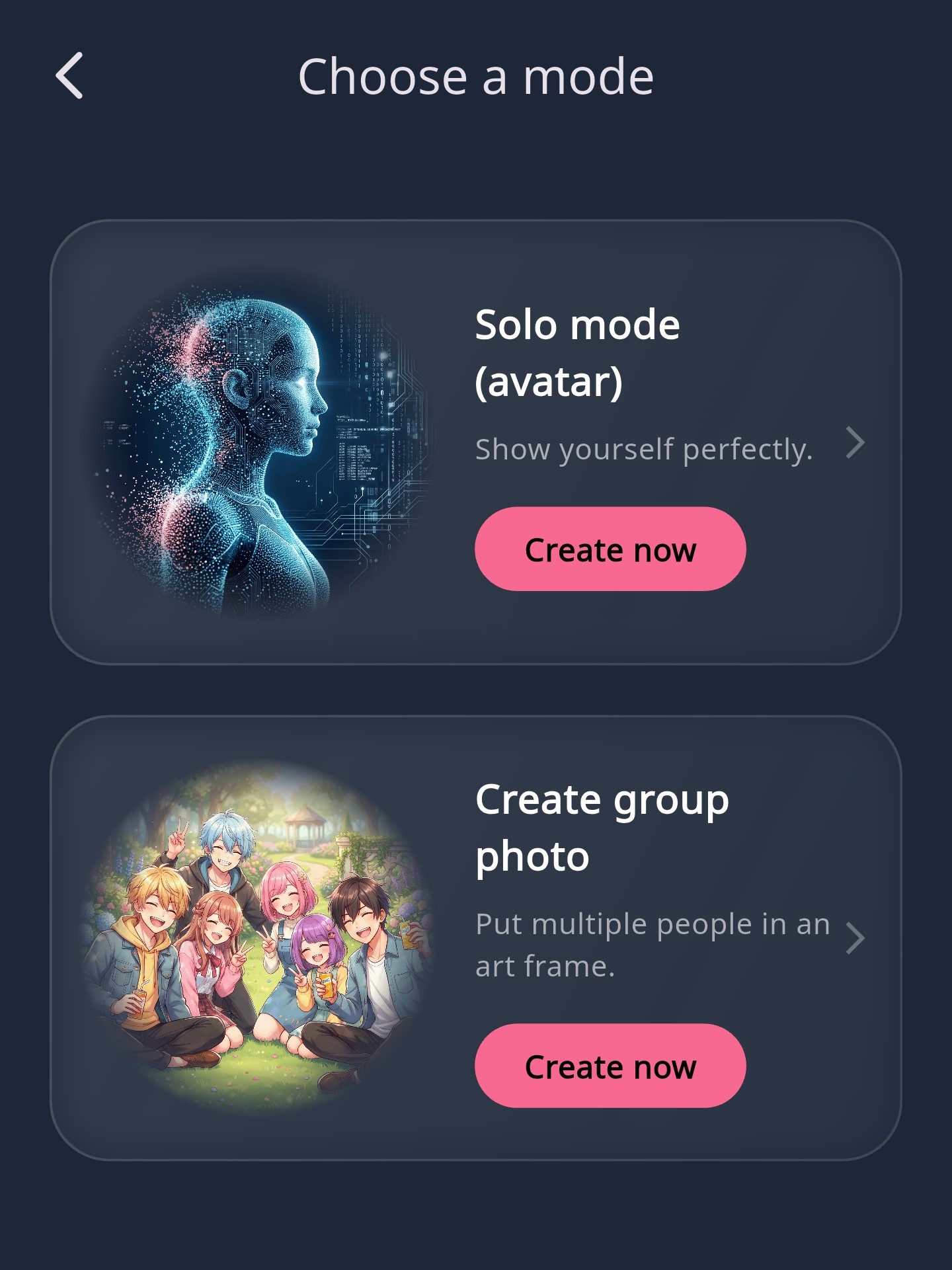
- Complete the basic settings for your chosen mode.
- Upload a photo you are happy with that meets the app’s requirements.
- Record audio or upload an audio file.
- Submit and wait for the avatar to finish generating.
View it on your frame
When generation is complete, the avatar automatically syncs to the frame signed in to the same account. Keep both devices online and follow the frame’s on-screen prompts to start using it.
If you need help
- Avatar not showing? Check that your phone and frame are signed in to the same DeepSire account and connected to the internet.
- Still generating? Wait for the app to show that generation is complete, then check your frame.
- Use clear photos and audio that you have permission to use, and follow the app’s content requirements.